How to Make AI Videos Directly Inside Claude
Connect SeraStudio to Claude with MCP and make AI videos, Shorts and scheduled posts from a chat. Setup takes three steps.
Most AI video tools want you inside their own app. You open a tab, pick a model, write a prompt, wait, download the file and go back to what you were doing. If you already spend your day in Claude, that loop gets old fast.
An MCP connector lets you skip it. You ask Claude for a video in plain words and Claude calls the video tools for you. This guide shows how to set that up with SeraStudio and what you can ask for once it is connected.
What MCP is
MCP stands for Model Context Protocol. It is an open standard that lets assistants like Claude use features from other services. Once SeraStudio is connected, Claude can pick a video model, start a render, check on it and hand you the result without leaving the chat.
Connect SeraStudio to Claude in three steps
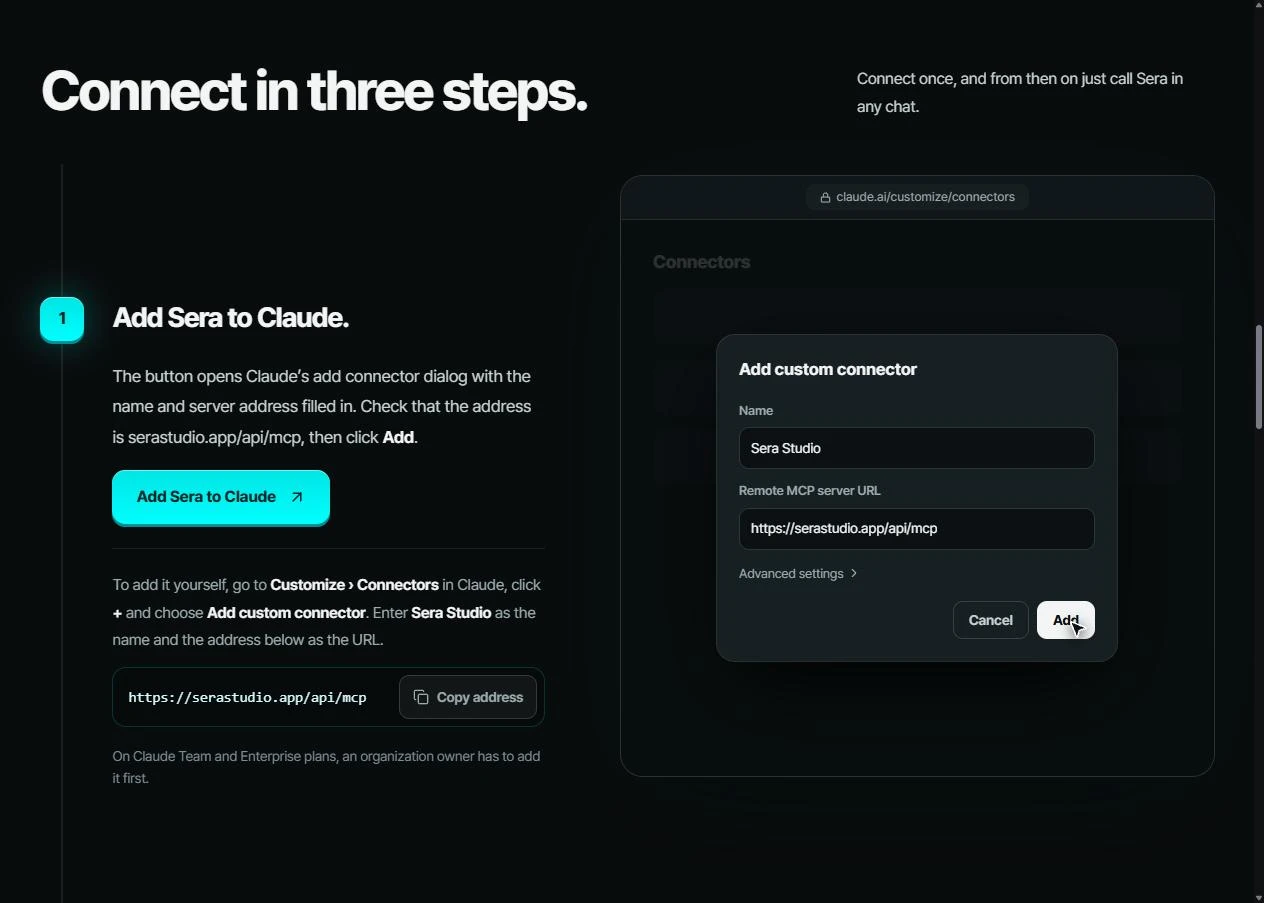
Step 1 is adding the connector. On the SeraStudio MCP page, click Add Sera to Claude. It opens Claude's connector dialog with the name and server address already filled in. Check that the address is serastudio.app/api/mcp and click Add.
You can also add it by hand. In Claude, go to Customize and then Connectors. Click + and choose Add custom connector. Use Sera Studio as the name and https://serastudio.app/api/mcp as the URL.
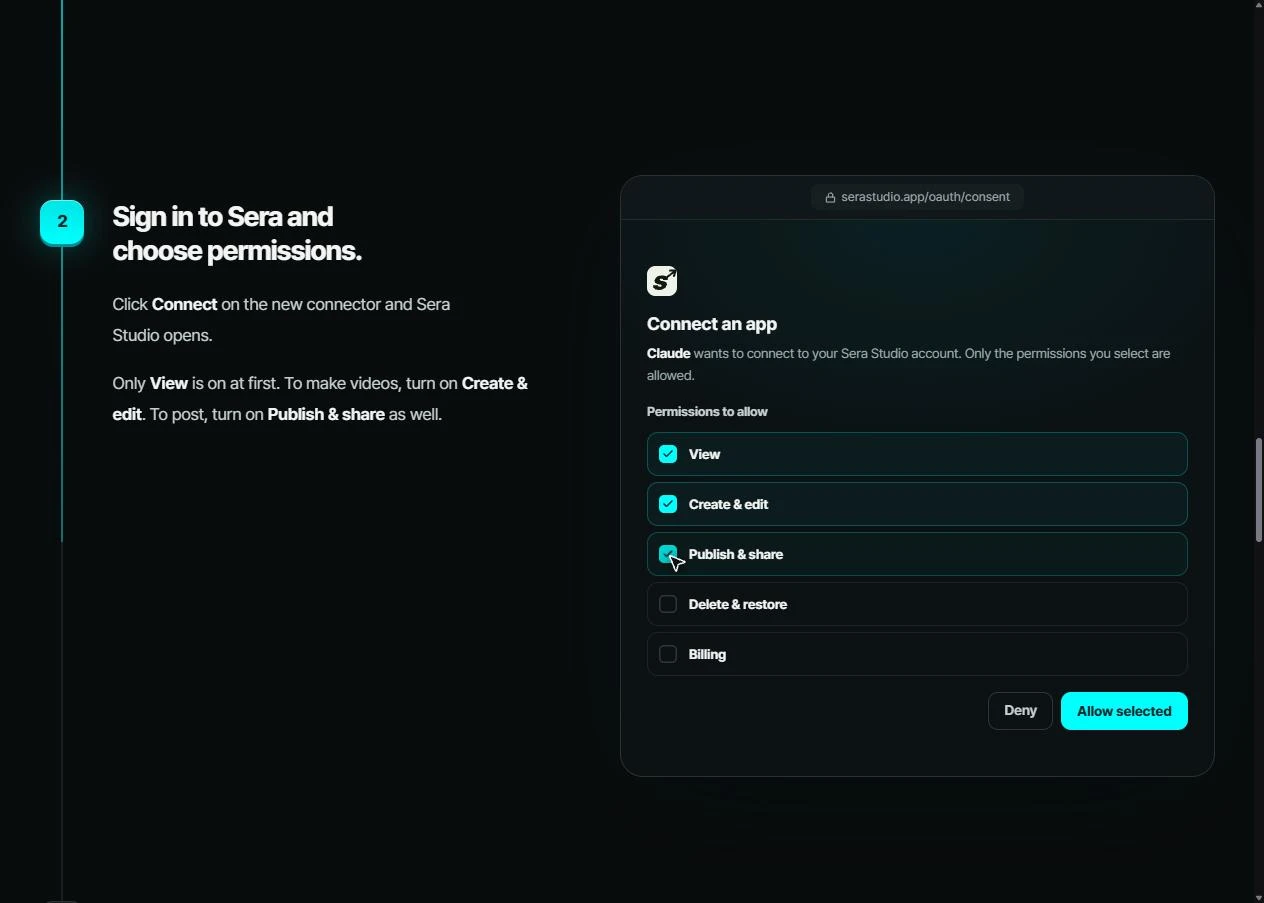
Step 2 is permissions. Click Connect on the new connector and sign in to SeraStudio. Only View is on at first. Turn on Create & edit to make videos. Turn on Publish & share too if you want Claude to post for you.
Step 3 is your first call. In a chat, click + at the bottom left, open Connectors and make sure Sera Studio is switched on. Then ask "Check my workspace and credits in Sera" to see that it works. The first time Claude uses each tool, it asks for permission. Pick Always allow and it stops asking for that tool.
On Claude Team and Enterprise plans an organization owner has to add the connector first. Connectors are saved to your Claude account, so once you add it on the web it also works in the Claude desktop app.
What you can ask for
You don't need to know any tool names. Ask in your own words and Claude picks the tools. Here are a few prompts from the MCP page.
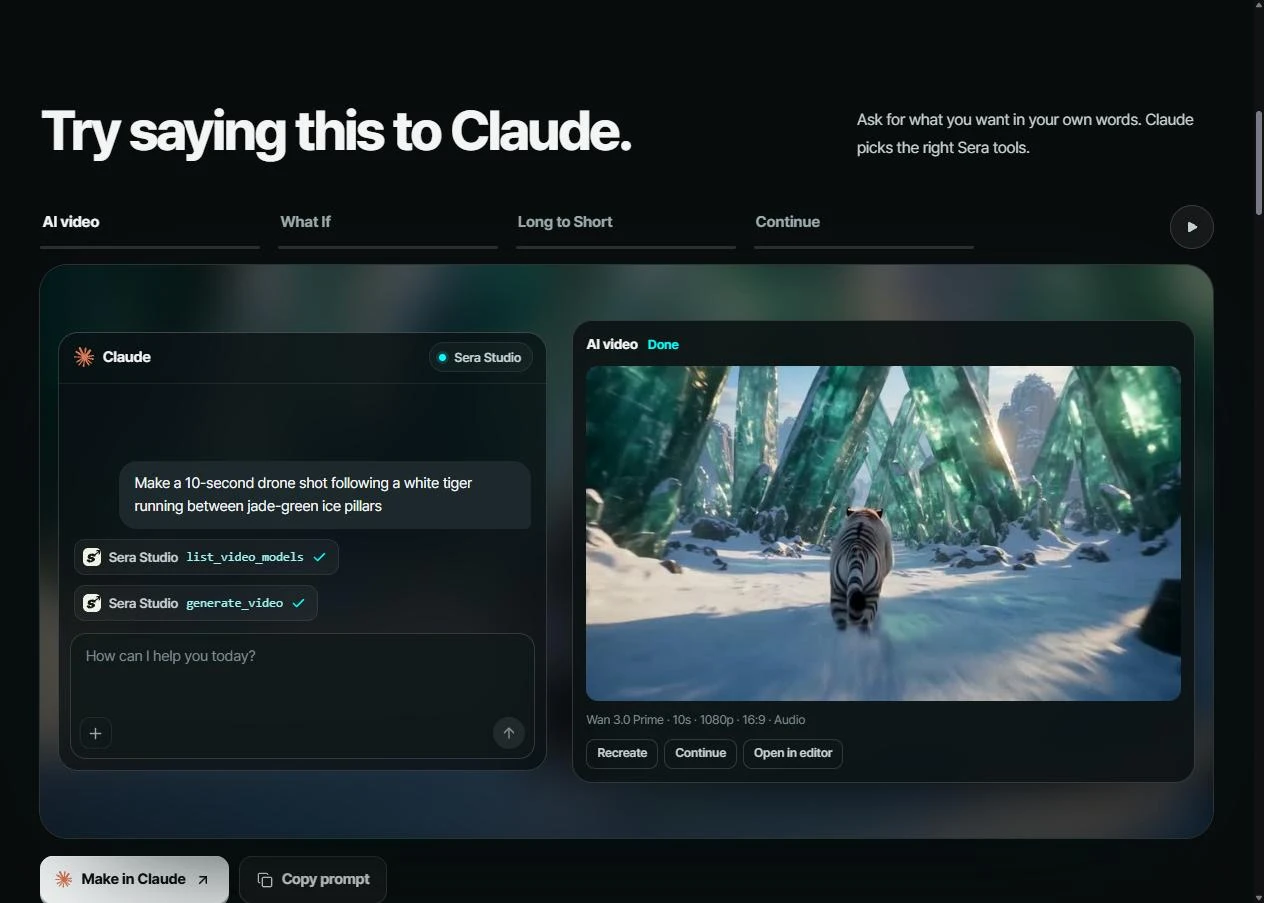
"Make a 10-second drone shot following a white tiger running between jade-green ice pillars." Claude checks the video models and starts the render.
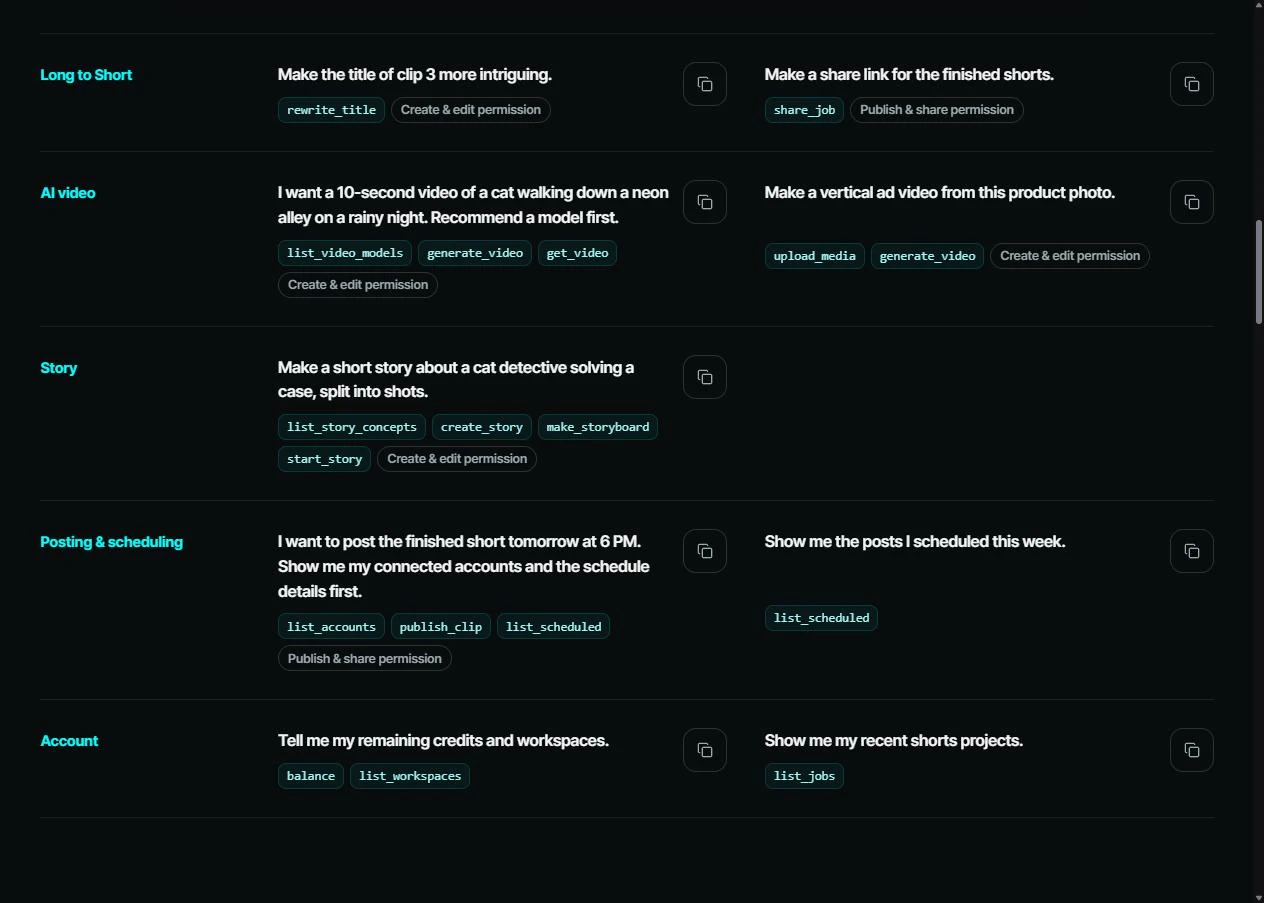
"I want a 10-second video of a cat walking down a neon alley on a rainy night. Recommend a model first." Claude suggests a model before it makes anything.
"Make a vertical ad video from this product photo." Claude uploads your photo and turns it into an ad.
"Make a short story about a cat detective solving a case, split into shots." Claude picks a story concept, builds a storyboard for each shot and renders the episode.
"I want to post the finished short tomorrow at 6 PM. Show me my connected accounts and the schedule details first." Claude shows you the account and the time before it schedules anything.
Turn long videos into Shorts from a chat
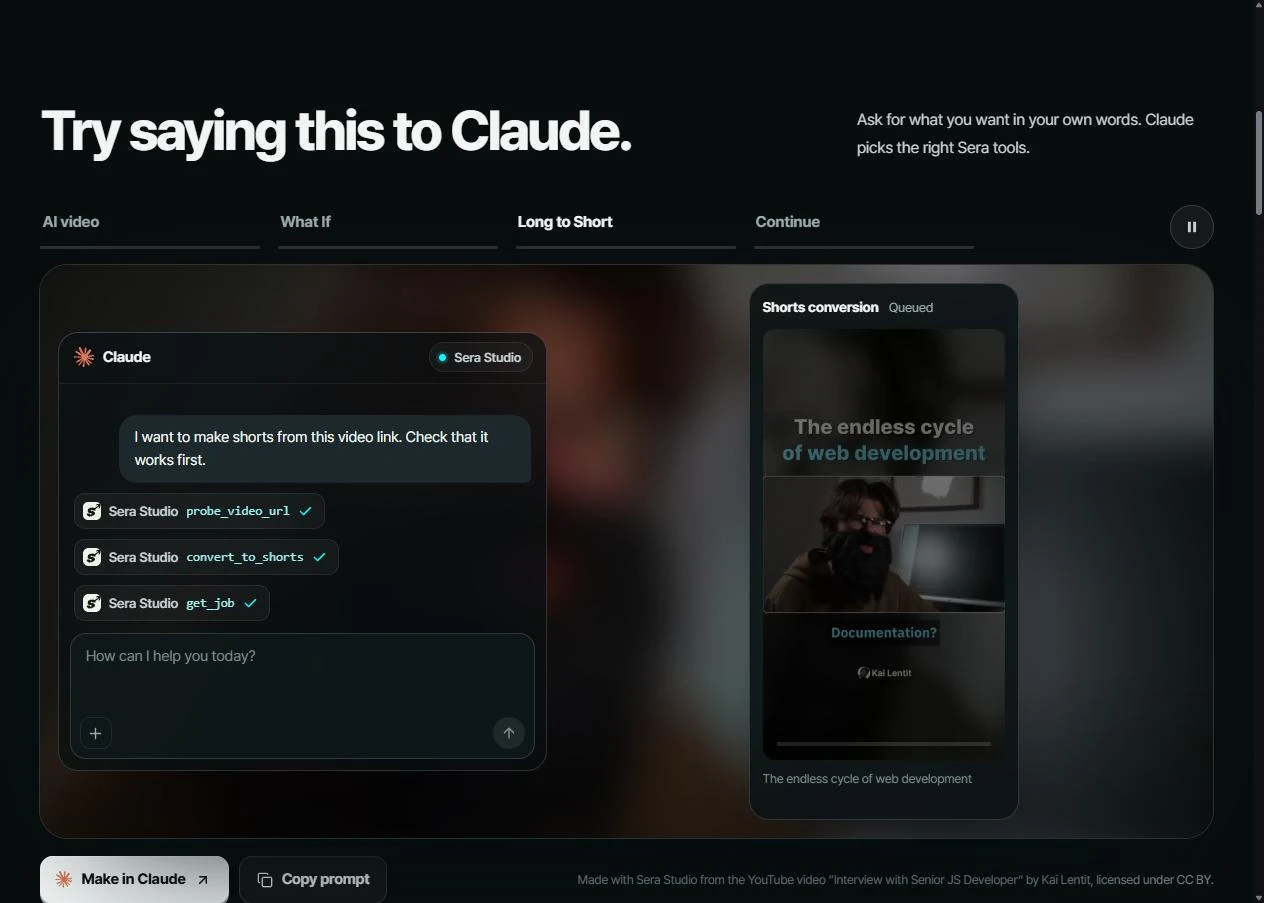
Long to Short works the same way. Give Claude a link to a long video and ask for Shorts. SeraStudio cuts vertical clips with captions, and Claude can suggest new titles and share links when they are done.
Accounts and pricing
You sign in with your SeraStudio account when you connect. Renders and Long to Short use the workspace you choose, and every feature costs the same as it does in the SeraStudio app. If you work in a team space, tell Claude which workspace to use.
Before you schedule posts
Connect the social accounts you want to post to in SeraStudio first. Allow Publish & share when you connect Claude. Then confirm the clip, the account, the time and the visibility in the chat before Claude posts. Posting right away can't be undone, so check once.
If you already work in Claude, this saves you the app switching. Add the connector once and your next video is one message away.