
Feature · Schedule calendar
Videos you’ve made,posted on a steady rhythm.
Pick your finished shorts and schedule them all at once.
They post to the social accounts you choose on the days and times you set.
You can also polish the title and description before they post



Take one video’s story
to more channels.
Connect your social accounts and choose where to post.
Manage the schedule for every channel in one place.
- YouTube
- TikTok
- Threads
- X
Pick the days and times.
Your next posts fill in.
From one a day to weekends only.
See which posting rhythm fits your channel.
Finished videos3/6 clips
Posting schedule
Mon, Wed, Fri at 7pm
If added now, posts go out one by one from Mon, Nov 2, 7:00 PM
Schedule calendar
Scheduling open through Dec 2
ExampleThis example changes with your settings. Schedule real posts on the calendar.
Example video sources
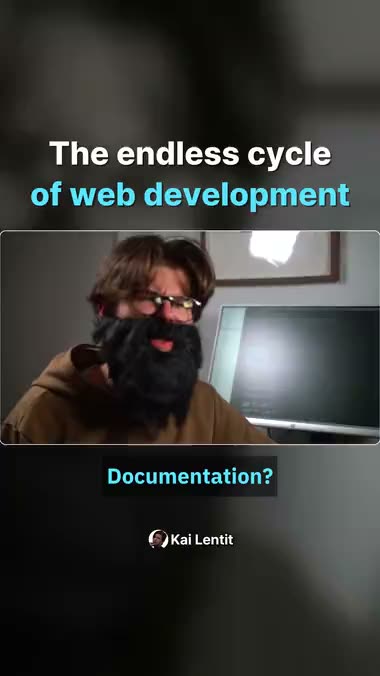
- Made with Sera Studio from the YouTube video “Interview with Senior JS Developer” by Kai Lentit, licensed under CC BY.
- Made with Sera Studio from the YouTube video “IMPOSSIBLE "SUPER SAVAGE" DEEP DISH PIZZA CHALLENGE | Austin Texas” by Joel Hansen, licensed under CC BY.
- Made with Sera Studio from the YouTube video “I Built a SECRET Room You'd Never Find!” by Stokes Twins, licensed under CC BY.
- Made with Sera Studio from the YouTube video “My First Piercing Experience (Animated Story-Time)” by Jelly Jess, licensed under CC BY.
- The AI videos are public examples made with Motion Studio.
Post copy that matters
as much as the video.
AI reads your video and writes the title and description.
It adds hashtags too.
Review the video and the text together and adjust them to your channel’s voice. See exactly what will post before you schedule it.
Get videos ready to postCheck the video, title and description together.
Written from what’s said in the clipWriting…Posts with this text
- Post titleOne line with the point up front.
- DescriptionTwo or three sentences, and the first gives a reason to watch.
- HashtagsTags about the topic come first.
Prepare your posts in one go.
Focus on your next video.
Work with your team- 01
Choose where to post.
Connect your social accounts and pick the channels to post to. You can also manage them in channel groups, one per brand.
- 02
Schedule your finished videos.
Set the days and times, then select your clips. Check the schedule and the text first, then add them all at once.
- 03
Edit and track posts in one place.
Edit the date and time of a scheduled post and see how posts went. Your past posts show on the calendar too.
Before you schedule.
How far ahead can I schedule?
Up to 30 days from today. The calendar shows the dates you can schedule. If the clips you select won’t all fit, Sera tells you before scheduling.
Can I change the date or the text after scheduling?
Open the scheduled clip on the calendar and edit the date, time, title or description. Until posting starts, you can cancel it or post it right away instead.
Which social accounts will it post to?
The accounts you select when you schedule. Pick several accounts or a channel group that collects them by brand. The account types you can connect vary by platform, and you’ll see them when you connect.
Why does Post for Me appear when I connect an account?
It’s the service that connects your social accounts and handles posting. Its name shows on the consent screen, and it manages the connected account details.
Where can I check that a post went out?
The calendar shows each post’s status and your past posts. Posting can run a little late depending on each platform.
Can I schedule AI videos too?
Yes. AI videos made in Motion Studio go on the same calendar. YouTube labels them as altered or synthetic content, and TikTok labels them as AI-generated.
Can I start for free?
Sign up without a card and try Long to Short with 60 credits. Schedule finished videos after connecting a social account. How many accounts you can connect depends on your plan.
Schedule the posts,
make your next scene.
Start by adding this week’s videos to the calendar.
Start my posting schedule