Turning horizontal video vertical crops people out: 3 videos you shouldn’t leave on auto
Crop a 16:9 video to 9:16 and anyone near the edge falls out of the frame. Sera Studio gives you two layouts and four framings that AI picks scene by scene. With slides, fast cuts between people or burned-in captions, check the auto framing yourself.
Sera Studio vertical layout settings
- Vertical shorts ratio
- 9:16
- Layouts to choose from
- 2
- Framings AI picks from
- 4
Moving a 16:9 video into a 9:16 frame cuts off both sides. If one person sits in the middle, a plain crop works. When two people face each other, or slides or a game screen fill one side, the part that matters ends up outside the frame.
So going vertical comes down to two decisions: how much of the original to cut away, and which part of it the frame should show.
First, pick a layout
The padded frame is the default. It places the video in the middle of the screen without changing its shape and puts the title and captions in the margins above and below. Nothing is cropped, so it suits videos where what’s on screen matters.
The full frame fills the whole vertical screen. People look bigger, but the sides are cut. If most of the video is people talking, this one makes better use of the screen.
Four framings AI picks on its own
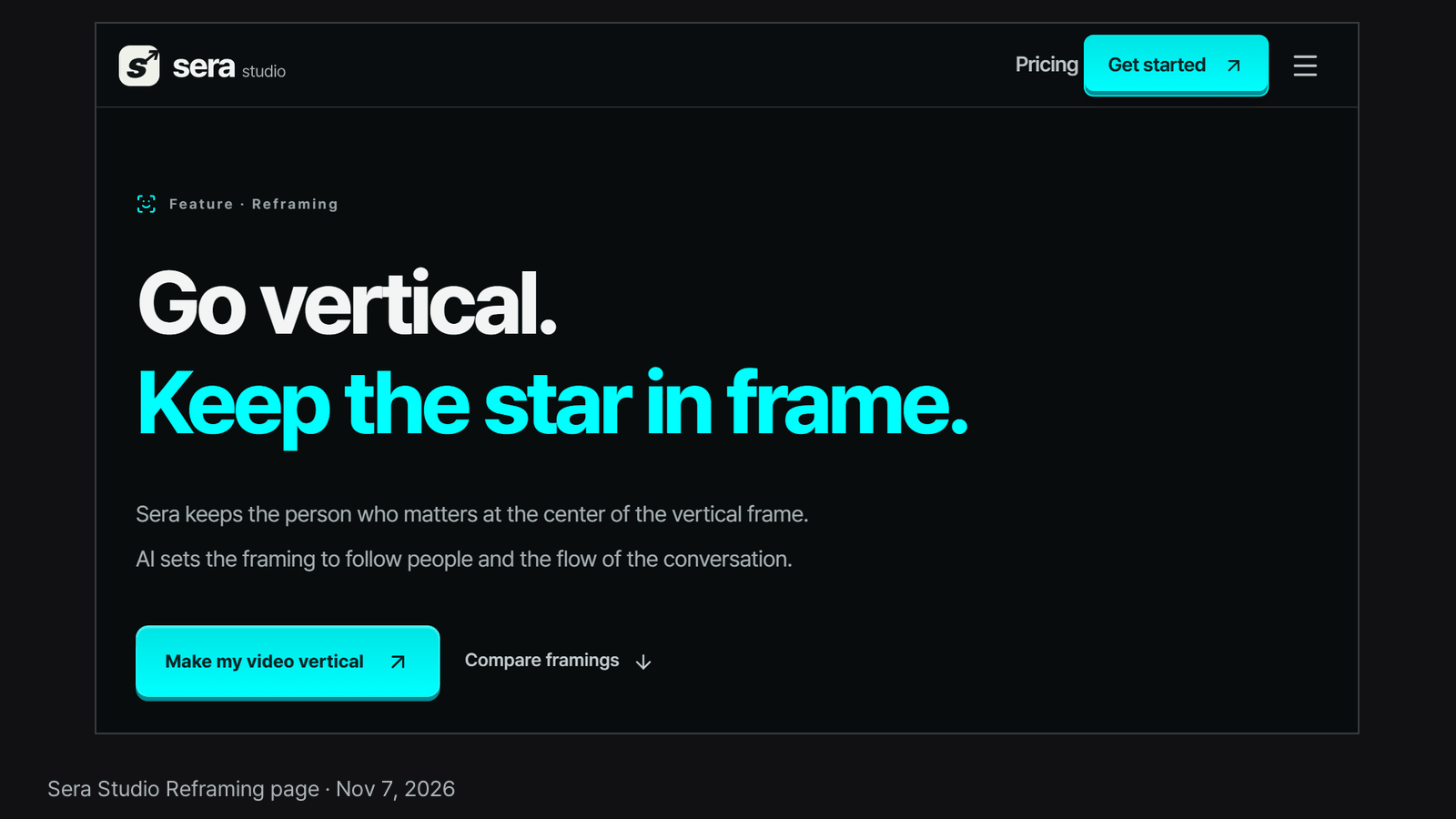
With reframing set to Auto, AI picks one of four framings for each scene in the full frame. One person follows a single person through each shot, Speaker cut switches to whoever is talking, Split screen gives each person a panel, and Facecam + screen puts a facecam above the main screen. When someone moves, the crop moves with them. You can compare all four on our reframing page.
Videos you shouldn’t leave on auto
The first is a video where the text on screen is the content. If the numbers on a slide or a game screen get cropped, the video stops making sense. The padded frame is the safer choice here.
The second is an edit that cuts between people often. When shots change fast, the crop jumps around with them. Pick the stretches that matter, then drag the video sideways in the canvas editor to pin the crop for those parts.
The third is a video with captions already burned in. In the full frame that text can get cut off or run into the new captions. In the padded frame the original stays whole and your captions sit in the margin below it. If the two still crowd each other, move your captions in the canvas editor.
Good to know
- Auto framing can vary from scene to scene. For a video that matters, check it in the canvas editor before you download it.
- This article doesn’t say which framing gets better results. We haven’t measured that.
- Sera Studio wrote this article about its own feature. The settings described are as of Nov 7, 2026.